Using TagSpaces as a PKM Tool for AI Context Management

Your AI Assistant Generates Files. Here Is How to Manage Them.
AI coding assistants like Claude Code, Cursor, and Windsurf are no longer just autocomplete. They are agents that read your codebase, remember decisions across sessions, and leave behind a growing trail of context files — memory files, conversation plans, project notes, settings.
These files are plain text sitting on your disk. They encode critical decisions, architectural trade-offs, and feedback you gave the AI. But most developers never look at them, let alone organize them.
TagSpaces can change that. In this post, we will walk through how to use TagSpaces to browse, tag, and search your AI context files — and how to go further by building a linked digital brain from interconnected Markdown files.
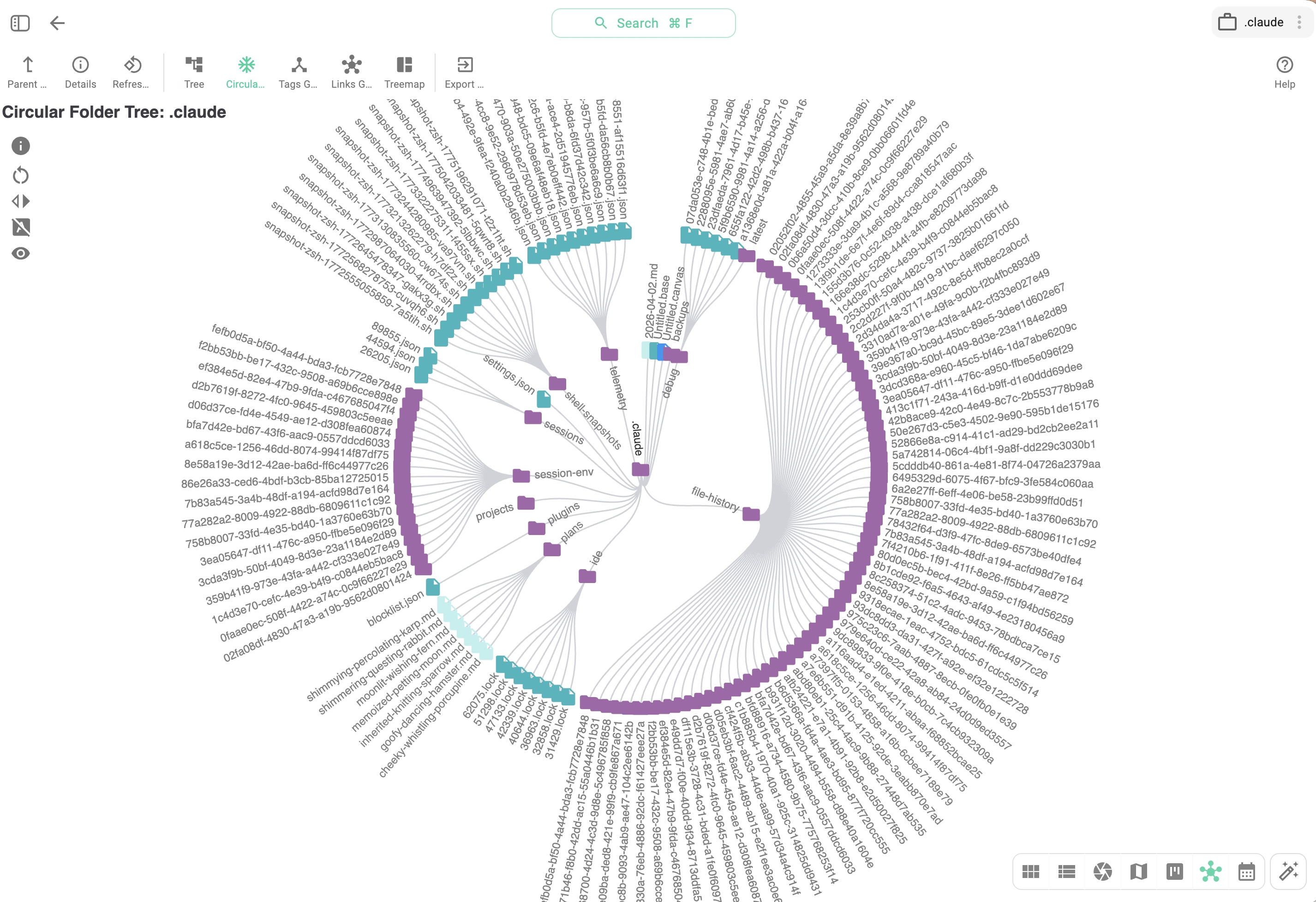
Browsing the '.claude' Folder
If you use Claude Code, you have a ~/.claude/ directory that grows with every session. Add it as a location in TagSpaces, and you get an instant overview:
- Memory files — what your AI remembers about you, your preferences, and your projects
- Plan files — step-by-step implementation plans the AI created during sessions
- Settings — tool permissions, hooks, and project-specific configuration
Every file renders with a live preview — Markdown, JSON, YAML — so you can read AI-generated context without opening a separate editor. Use the folder tree to navigate between projects, or switch to a flat view to see all memory files across every project at once.
Tagging What Matters
Most AI-generated context is ephemeral. But some of it encodes decisions you will need months from now. TagSpaces lets you tag these files so they are findable when it matters:
decision— architectural choices, trade-offs, rejected alternativesfeedback— corrections you gave the AI that should persist across sessionsstale— context that is no longer accurate and should be reviewed or removedreference— pointers to external systems, docs, or dashboards
Tags work across all file types — Markdown, JSON, YAML, images — and travel with the file when you copy or move it. Combined with full-text search, you can find every AI decision related to "authentication" across all your projects in seconds.
Building a Digital Brain with Linked Markdown Files
TagSpaces is not just a viewer for AI-generated files. With the frontmatter support and internal link resolution introduced in version 6.10, it becomes a capable tool for building and navigating a personal knowledge base made of interconnected Markdown files.
How It Works
Create Markdown files with YAML frontmatter for metadata and standard [links](./other-file.md) to connect them:
---
title: Authentication Architecture
created: 2026-03-15
status: approved
---

# Authentication Architecture

We chose JWT with refresh tokens over session-based auth.
See [Trade-off Analysis](./auth-tradeoffs.md) for the full
comparison. The implementation plan is in
[Sprint 12 Plan](./sprint-12.md#auth-implementation).

Related decisions:

- [API Rate Limiting](./rate-limiting.md)
- [Role-Based Access Control](./rbac.md)
In TagSpaces, clicking these links navigates directly to the referenced file. The frontmatter is rendered in a collapsible header — clean and out of the way, but accessible when you need to check metadata.
Why This Matters for AI Workflows
The real power emerges when you connect your own notes with the context your AI generates. For example:
- Write a
decisions/auth-architecture.mdnote summarizing a key decision - Link it to the Claude Code memory file that records the AI's understanding of that decision
- Tag both with
decisionandsecurity - Six months later, search for "authentication" and find both the human reasoning and the AI context in one place
This is a digital brain — not a proprietary graph database, but a folder of plain files linked to each other. It works with TagSpaces, it works with any text editor, and it will still be readable in 20 years.
Beyond Markdown: Every File Type Is a Knowledge Artifact
Most PKM tools treat non-Markdown files as attachments — second-class citizens hidden behind a link. TagSpaces takes the opposite approach: every file is a first-class knowledge node, regardless of format.
A real-world digital brain is not just notes. It is:
- PDFs — research papers, contracts, invoices, manuals
- Images and screenshots — UI mockups, whiteboard photos, architecture diagrams
- Bookmarks — saved web pages as MHTML or URL files, captured with the TagSpaces Web Clipper
- Emails — archived messages in EML or MSG format, preserving the full conversation context
- Spreadsheets — budgets, data exports, comparison tables
- Source code — scripts, config files, snippets
- Contacts — VCF files with client or colleague details
- Audio and video — meeting recordings, voice memos, tutorials
In TagSpaces, all of these render with live previews, can be tagged with the same tag system, show up in the same search results, and carry descriptions and metadata. A PDF of an API specification sits next to the Markdown decision doc that references it, both tagged architecture, both searchable, both browsable in grid, list, or gallery views.
This is what separates a file-based digital brain from a note-based one. Your knowledge does not live only in what you write — it lives in everything you collect, generate, save, and receive. A PKM tool that only handles Markdown is managing a fraction of what you actually know.
Importing Existing Knowledge Bases
If you already maintain a knowledge base in Obsidian, Logseq, or any other tool that uses plain Markdown files with frontmatter, TagSpaces can browse it directly. Point TagSpaces at your existing vault folder — your notes render cleanly, frontmatter is recognized, and internal links work. No import step, no conversion, no sync.
This also means you can use your preferred writing tool for authoring and TagSpaces for organizing, tagging, and searching across the full collection — including all the non-Markdown files that your other PKM tool cannot handle natively.
Automating with tscmd
For developers who prefer the terminal, the TagSpaces CLI can automate context management:
# Index your AI context for instant search
tscmd indexer ~/.claude/

# Tag all memory files modified this week
find ~/.claude -name "*.md" -mtime -7 -exec tscmd tag {} -t recent \;

# Clean up orphaned metadata from deleted projects
tscmd metacleaner ~/.claude/projects/

# Add a description to a critical decision file
tscmd describe ~/.claude/projects/myapp/memory/auth_decision.md \
  -d "JWT vs sessions decision — approved March 15, do not change without security review"
Set this up as a weekly cron job and your AI context stays indexed, tagged, and searchable without any manual effort.
The Workflow Loop
The most effective pattern we have found is a simple loop:
- Work with your AI assistant — Claude Code, Cursor, or any tool that generates context files
- Browse in TagSpaces — see what the AI remembered, what plans it created, what decisions it recorded
- Tag and annotate — mark critical decisions, flag stale context, add human descriptions
- Link your own notes — connect your reasoning to the AI's context with Markdown links
- Search before you prompt — before starting a new session, check what the AI already knows
The result is not just better file organization — it is trust. When you can see, search, and annotate what your AI remembers, you stop treating it as a black box. You start curating its memory the way you would curate your own notes.
Getting Started
- Add your
.claude/folder (or.cursor/, or any AI context directory) as a location in TagSpaces - Browse — most developers are surprised by how much context their AI has accumulated
- Tag the keepers — start with just two or three tags:
decision,feedback,stale - Start linking — create your own Markdown notes that reference AI-generated context
- Optionally install tscmd —
npm install -g @tagspaces/shell— for automated indexing and bulk tagging
For the full backstory on why AI context management is becoming a critical workflow — and how it compares to using Obsidian for the same purpose — see our in-depth article on Substack.
The files are already on your disk. TagSpaces makes them visible.